
How to Create Stunning AI Images with Seedream 5
Creating beautiful AI-generated images has never been easier. With Seedream 5's advanced AI technology, you can transform your ideas into stunning visuals in seconds. You'll see examples like e-commerce hero scenes, anime fantasy art, film portraits, and sticker packs for social content. This comprehensive guide will walk you through everything you need to know to create professional-quality AI images.
Getting Started with Seedream 5
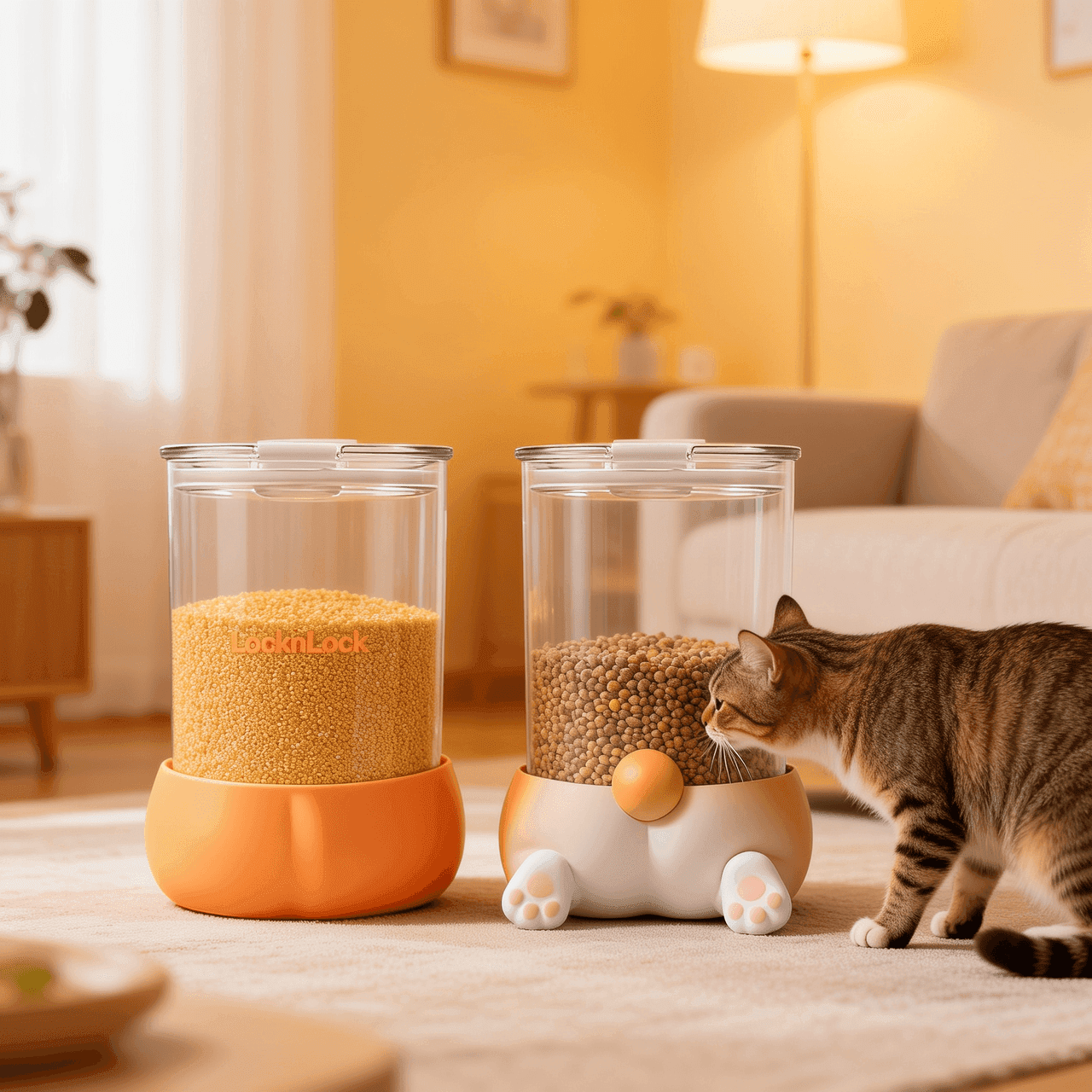
This e-commerce hero scene shows how a warm lifestyle setting can elevate a simple product shot.
What You'll Need
- A Seedream 5 account (free or paid)
- A clear vision of what you want to create
- Basic understanding of descriptive language
Understanding the Basics
Seedream 5 uses advanced AI models to interpret your text descriptions (prompts) and generate corresponding images. The quality of your results depends largely on how well you describe what you want to see.
Step 1: Crafting Effective Prompts
Be Specific and Descriptive
Instead of: "a cat" Try: "a fluffy orange tabby cat with green eyes, sitting on a windowsill, soft morning light, photorealistic"
Include Key Elements
A well-structured prompt should include:
- Subject: What is the main focus? (person, object, scene)
- Style: What artistic style? (photorealistic, anime, oil painting, digital art)
- Lighting: What kind of lighting? (golden hour, studio lighting, dramatic shadows)
- Composition: How is it framed? (close-up, wide shot, aerial view)
- Mood: What feeling should it convey? (peaceful, energetic, mysterious)
- Details: Specific characteristics (colors, textures, expressions)
Example Prompts
For Portraits:
Professional headshot of a confident businesswoman, 30s, wearing elegant blazer,
soft studio lighting, neutral background, sharp focus, photorealistic,
high resolution, professional photography
For Landscapes:
Majestic mountain landscape at sunset, snow-capped peaks, alpine lake reflection,
dramatic clouds, golden hour lighting, wide angle, cinematic composition,
highly detailed, 8K quality
For Fantasy Art:
Anime fantasy mage with translucent wings, flowing silver hair, glowing aura,
enchanted forest background, bioluminescent plants, mystical atmosphere,
fantasy anime style, detailed illustration, vibrant colors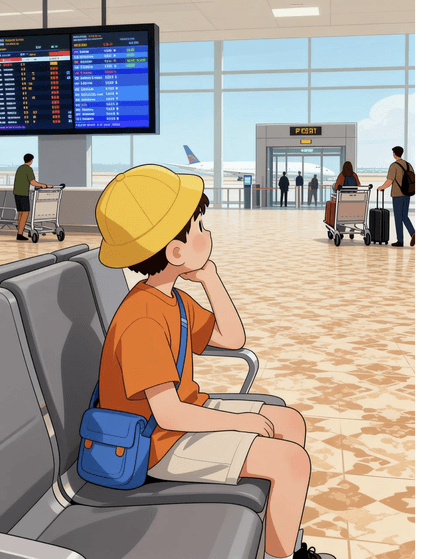
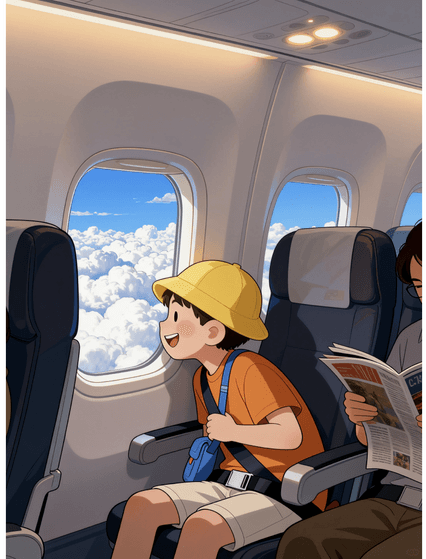
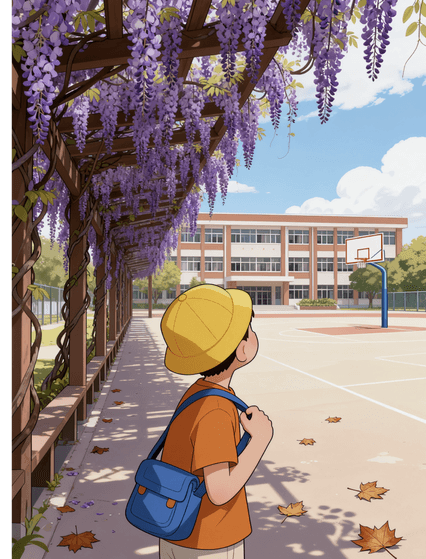
Anime-styled fantasy art is a great way to test bold color palettes and character silhouettes.
Step 2: Using Reference Images
Seedream 5 allows you to upload up to 6 reference images to guide the AI's generation process.
When to Use References
- Style Transfer: Upload an image with the artistic style you want
- Composition Guide: Show the layout or framing you prefer
- Color Palette: Provide images with your desired color scheme
- Character Consistency: Maintain the same character across multiple generations
Best Practices for References
- Use high-quality, clear images
- Ensure references match your intended style
- Don't overload with conflicting styles
- Combine references strategically (e.g., one for style, one for composition)
Step 3: Selecting the Right Settings
Resolution
- Standard (1024x1024): Perfect for social media and web use
- High (2048x2048): Great for prints and detailed work
- Ultra-High (4096x4096): Professional-grade for large prints (Premium plan)
Aspect Ratios
Choose based on your use case:
- 1:1 (Square): Instagram posts, profile pictures
- 16:9 (Landscape): YouTube thumbnails, website banners
- 9:16 (Portrait): Instagram Stories, TikTok, mobile wallpapers
- 4:3: Traditional photography, presentations
AI Model Selection
Seedream 5 offers multiple AI models:
- Flux: Best for photorealistic images and portraits
- SDXL: Versatile, great for artistic styles and illustrations
- Midjourney-style: Ideal for creative, artistic compositions
Step 4: Iterative Refinement
The Generation Process
- First Generation: Create your initial image
- Evaluate: Identify what works and what doesn't
- Refine Prompt: Adjust your description based on results
- Regenerate: Create variations until satisfied
Common Adjustments
- Too dark/bright: Add "well-lit" or "soft lighting"
- Wrong style: Be more specific about artistic style
- Missing details: Add more descriptive elements
- Composition issues: Specify framing and perspective
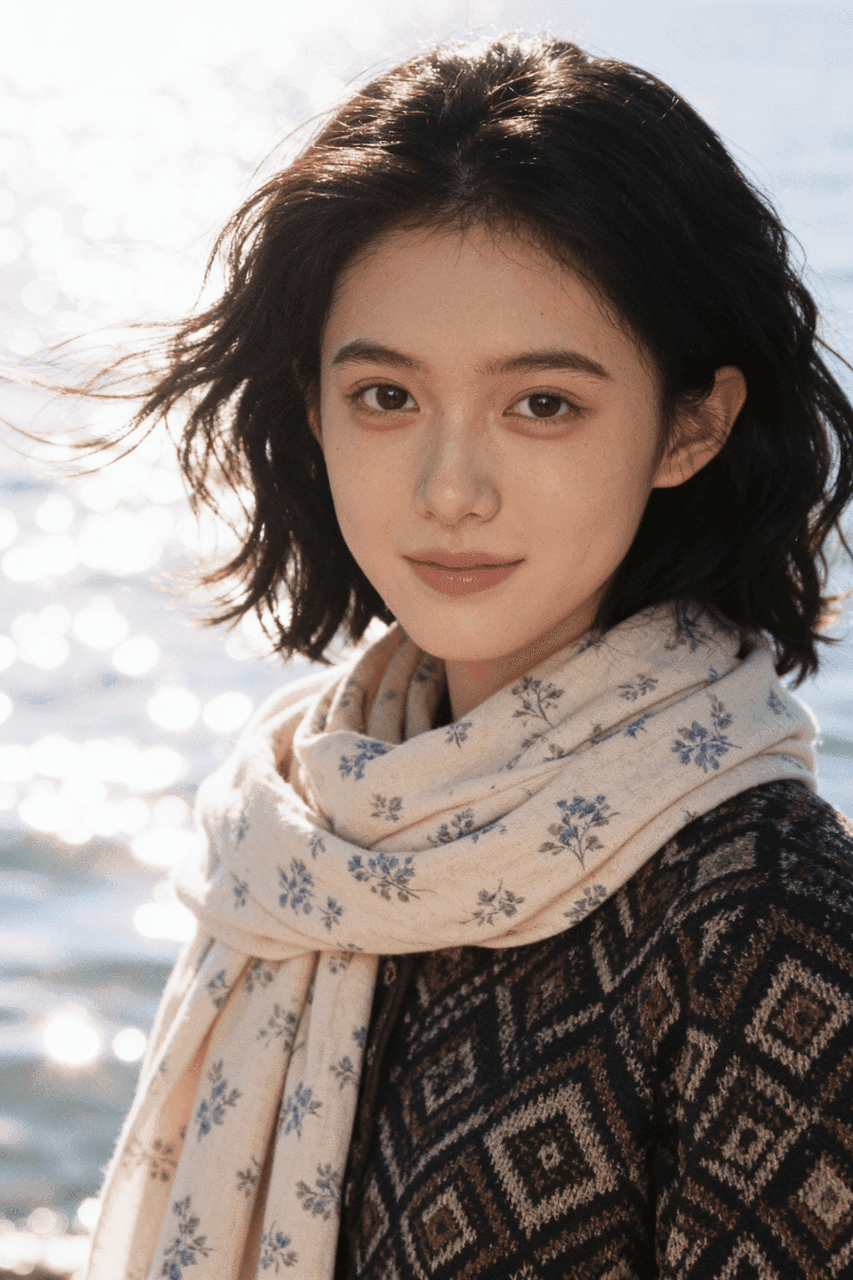
Film-style portraits help you judge skin tones, lighting balance, and lens feel at a glance.
Step 5: Advanced Techniques
Negative Prompts
Tell the AI what you DON'T want:
Negative: blurry, low quality, distorted, ugly, bad anatomy,
watermark, text, signature
Prompt Weighting
Emphasize important elements:
(beautiful landscape:1.5), mountains, (dramatic sunset:1.3), lakeStyle Mixing
Combine multiple styles:
Cyberpunk cityscape in the style of Blade Runner, neon lights,
rain-soaked streets, cinematic photography, moody atmosphere
Step 6: Post-Processing with AI Tools
Built-in Editing Features
Seedream 5 includes powerful editing tools:
- Upscaling: Increase resolution without quality loss
- Background Removal: Isolate subjects cleanly
- Style Transfer: Apply new artistic styles to existing images
- Inpainting: Edit specific areas of your image
Enhancement Tips
- Use upscaling for final outputs
- Remove backgrounds for product photos
- Apply subtle style adjustments for consistency
- Fix small imperfections with inpainting
Common Use Cases
1. Social Media Content
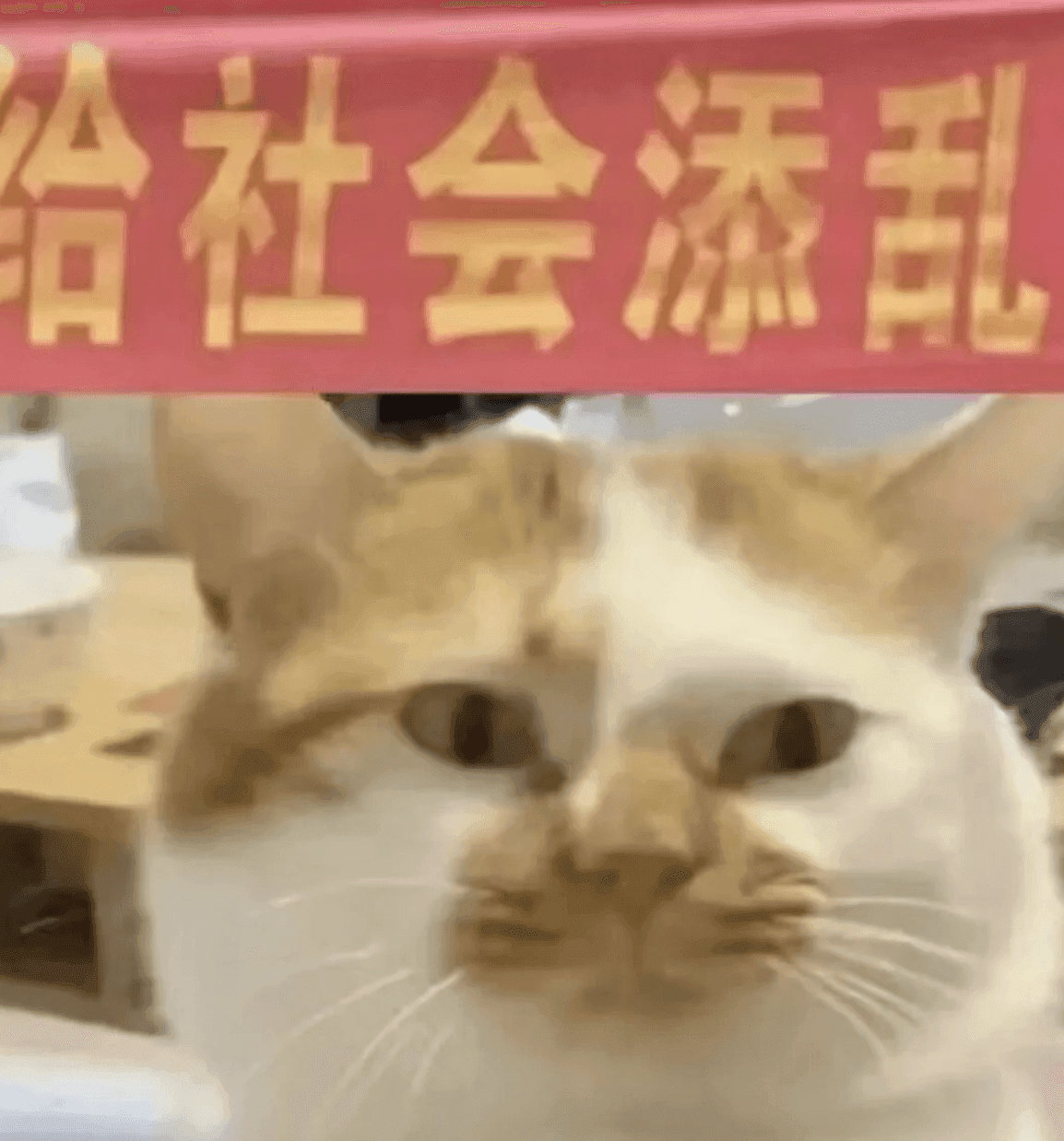
Sticker sets make it easy to batch-generate social assets with a consistent expression style.
Create eye-catching visuals for:
- Instagram posts and stories
- Facebook cover photos
- Twitter headers
- LinkedIn profile images
Tip: Generate multiple variations and A/B test performance
2. Marketing Materials
Design professional assets:
- Product mockups
- Advertisement visuals
- Website hero images
- Email campaign graphics
Tip: Maintain brand consistency with reference images
3. Creative Projects
Bring your ideas to life:
- Book cover illustrations
- Game concept art
- Character designs
- Storyboard frames
Tip: Create a series with consistent style and characters
4. Personal Art
Express yourself creatively:
- Digital art collections
- Custom wallpapers
- Gift designs
- Portfolio pieces
Tip: Experiment with different styles to find your unique aesthetic
Troubleshooting Common Issues
Issue: Results Don't Match Expectations
Solutions:
- Be more specific in your prompt
- Add reference images
- Try different AI models
- Adjust prompt weighting
Issue: Inconsistent Quality
Solutions:
- Use negative prompts to exclude unwanted elements
- Specify "high quality, detailed, professional"
- Try higher resolution settings
- Use the upscaling feature
Issue: Character Inconsistency
Solutions:
- Upload reference images of the character
- Use detailed character descriptions
- Generate multiple variations and select the best
- Use the same seed for consistency (Premium feature)
Issue: Wrong Style or Mood
Solutions:
- Be explicit about artistic style
- Add mood descriptors (dark, cheerful, mysterious)
- Include lighting descriptions
- Reference specific artists or art movements
Best Practices Summary
Do's
✅ Write detailed, specific prompts ✅ Use reference images strategically ✅ Iterate and refine your results ✅ Experiment with different settings ✅ Save successful prompts for future use ✅ Use negative prompts to avoid unwanted elements ✅ Choose appropriate resolution for your use case
Don'ts
❌ Use vague or generic descriptions ❌ Expect perfect results on first try ❌ Ignore the power of reference images ❌ Forget to specify style and mood ❌ Use low resolution for professional work ❌ Give up after one attempt ❌ Violate content policies or copyright
Advanced Tips from Pro Users
1. Build a Prompt Library
Save your best prompts and organize them by:
- Style (photorealistic, anime, oil painting)
- Subject (portraits, landscapes, objects)
- Mood (dramatic, peaceful, energetic)
2. Study Successful Examples
Analyze images you love:
- What makes them effective?
- How is the lighting handled?
- What's the composition?
- What style elements stand out?
3. Master One Style First
Before exploring everything:
- Pick one style you love
- Generate 50-100 images in that style
- Learn what works and what doesn't
- Then expand to other styles
4. Use Batch Generation
For efficiency:
- Generate multiple variations at once
- Compare results side-by-side
- Identify patterns in successful outputs
- Refine based on batch insights
5. Combine AI with Traditional Skills
Enhance your workflow:
- Sketch rough concepts first
- Use AI for rapid prototyping
- Refine AI outputs in photo editors
- Blend AI and hand-drawn elements
Inspiration and Resources
Where to Find Inspiration
- Seedream 5 Gallery: Browse community creations
- Art Platforms: ArtStation, DeviantArt, Behance
- Photography Sites: Unsplash, Pexels for composition ideas
- Social Media: Instagram, Pinterest for trending styles
Learning Resources
- Seedream 5 Blog: Regular tutorials and tips
- Community Discord: Connect with other creators
- YouTube Tutorials: Video guides and walkthroughs
- Prompt Libraries: Collections of effective prompts
Conclusion
Creating stunning AI images with Seedream 5 is both an art and a science. The key is to:
- Start with clear vision: Know what you want to create
- Write detailed prompts: Be specific and descriptive
- Use references wisely: Guide the AI with visual examples
- Iterate and refine: Don't expect perfection immediately
- Experiment boldly: Try new styles and techniques
- Learn continuously: Study what works and improve
Remember, every professional AI artist started as a beginner. The more you practice, the better you'll become at translating your creative vision into stunning AI-generated images.
Ready to Start Creating?
Start Creating with Seedream 5 and bring your imagination to life!
Have questions or want to share your creations? Join our Discord community or contact us at [email protected].
Related Articles: